Building a rota
The Rota / Shifts page lets you build weekly schedules for your team. Employees can see their upcoming shifts, and managers can track coverage at a glance. Shifts integrate with timecards so you can compare scheduled vs actual hours. For larger teams, use the filter bar, department grouping, and copy-previous-week features to manage rotas efficiently.
Open the Rota / Shifts page
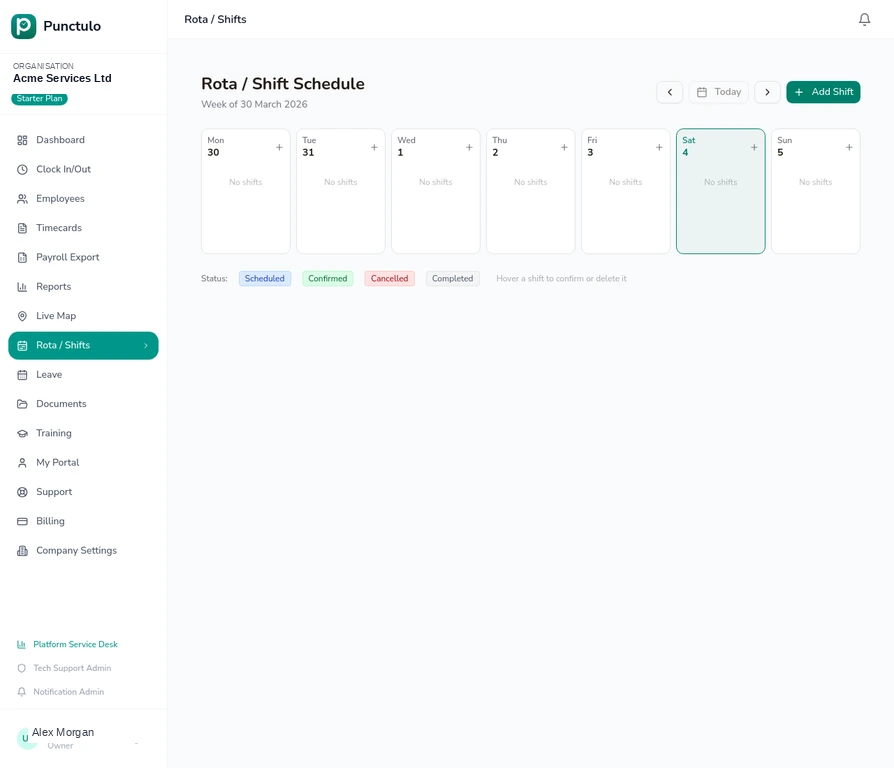
Click Rota / Shifts in the left-hand sidebar. The page shows a weekly calendar view starting from the current week.
Navigate to the target week
Use the left and right arrows at the top of the calendar to move between weeks. Click Today to return to the current week at any time.
Add a shift
Click the + Add Shift button in the top-right corner, or click the + icon on a specific day column. A dialog will appear asking you to select an employee, set the shift start and end times, and optionally add a note.
Fill in the shift details
Select the employee from the dropdown, then enter the start time and end time. You can also add a location or role note (e.g. 'Site A — Supervisor'). Click Save to add the shift to the rota.
You can add multiple shifts on the same day for different employees. Each shift appears as a card in the day column.
Filter the rota for large teams
Use the filter bar below the week navigation to narrow the view by role, location, or contract type. You can also type in the search box to find a specific employee. The active filter count badge shows how many filters are applied. Click Clear to reset all filters.
Filters are especially useful for teams of 50+ employees. Filtering by location lets you build and review the rota for a single site without scrolling past other employees.
Group shifts by department or location
Click the Group by dropdown and select Department or Location to organise the rota view into collapsible sections. Each section shows the group name and a count of shifts. Click a section header to expand or collapse it.
Grouping by department is the most common choice for organisations with distinct teams (e.g. Cleaning, Security, Maintenance). Grouping by location is useful for multi-site operations.
Copy the previous week's rota
If your rota repeats week-to-week, click the Copy Previous Week button. Punctulo will copy all confirmed shifts from the previous week into the current week. You can then make individual adjustments rather than rebuilding from scratch.
Copy Previous Week only copies shifts that were in a Confirmed or Scheduled status. Cancelled shifts are not copied.
Confirm or cancel a shift
Hover over a shift card to reveal action buttons. Click the tick to confirm the shift (status changes from Scheduled to Confirmed) or the cross to cancel it. Confirmed shifts are shown in green; cancelled shifts are shown in red.
Compare rota vs actual hours
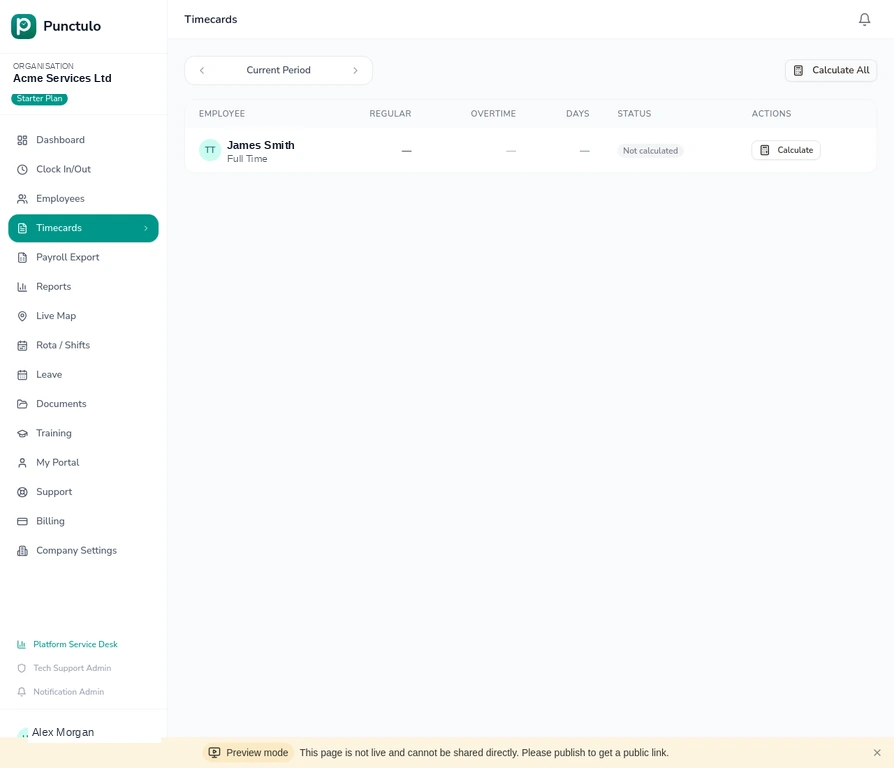
After the week has passed, navigate to Timecards to compare the scheduled hours against the actual clock-in/out records. Discrepancies are highlighted so you can investigate missed shifts or unauthorised overtime.