Running a payroll export
Once timecards are approved, you can export the hours data to your payroll software in seconds. Punctulo supports CSV and Excel formats, both of which are compatible with most payroll packages. You can also filter the export by department or location to match your payroll structure.
Open the Payroll Export page
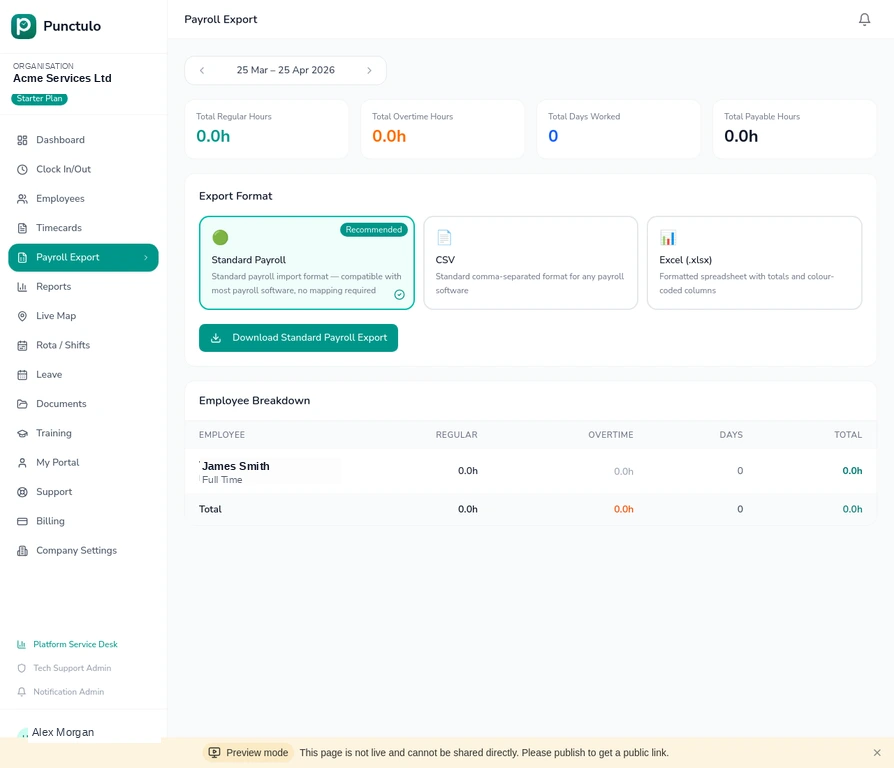
Click Payroll Export in the left-hand sidebar. The page shows summary statistics for the selected period and a list of employees with their calculated hours.
Select the date range
Use the period navigation arrows to select the pay period you want to export. The page will show the total regular hours, overtime hours, and days worked for that period.
Filter by department or location (optional)
Use the Department and Location filter dropdowns to narrow the export to a specific subset of employees. This is useful if you run separate payroll runs for different departments or sites. Leave both filters set to 'All' to include every employee.
Department and location values are pulled from the employee records. Make sure employees have their department and location set correctly before running a filtered export.
Choose an export format
Select your preferred export format from the three options: Standard Payroll (recommended — compatible with most payroll software), CSV (plain comma-separated values), or Excel (.xlsx) (formatted spreadsheet with colour-coded columns and totals).
If you're unsure which format to use, start with Standard Payroll. It includes all the fields most payroll packages expect, including the EmployeeRef / Payroll ID column.
Review the employee breakdown
Before downloading, scroll down to review the Employee Breakdown table. This shows each employee's regular hours, overtime hours, days worked, and total payable hours. Check these figures match your expectations.
Download the export
Click the Download button. The file will be saved to your computer's Downloads folder. Open it in your payroll software and import the data using the standard import wizard.
Keep a copy of each export for your records. Punctulo also stores a history of all exports so you can re-download them at any time.