Managing leave
Punctulo's Leave module lets employees request time off and managers approve, reject, or add leave on their behalf. The system tracks statutory leave balances, detects scheduling conflicts with the rota, and supports bulk approval for busy periods.
Open the Leave page
Click Leave in the left-hand sidebar. The page shows a list of all leave requests for your organisation, with tabs for Pending, Approved, and All requests.
Request leave as an employee
Click the Request Leave button. A dialog will appear asking for the leave type (Annual Leave, Sick Leave, Unpaid Leave, etc.), start date, end date, and an optional reason. Click Submit Request to send it to your manager for approval.
Your current leave balance for each leave type is shown in the **Leave Balances** section at the top of the page. Check your remaining entitlement before submitting a request.
Check the statutory leave balance table
Scroll to the Leave Balances section to see a breakdown of your entitlement for each leave type. The table shows your total entitlement, days taken, and days remaining for the current leave year. Statutory entitlements (e.g. 28 days annual leave for full-time UK workers) are pre-configured.
Leave balances are calculated from the employee's start date and contract type. If a balance looks incorrect, ask your manager to check the employee record.
Approve or reject a leave request (managers)
Managers and admins see all pending requests in the Pending tab. Click on a request to open it, then click Approve or Reject. If rejecting, you can add a reason that will be visible to the employee.
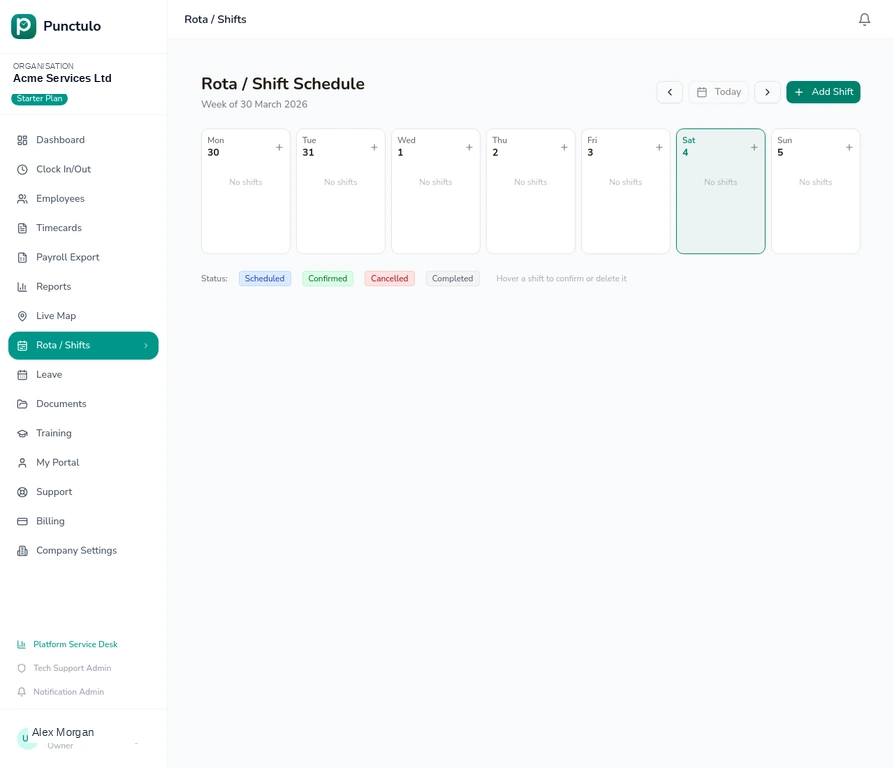
Approved leave is automatically reflected in the rota — the employee's name will show a leave indicator on the days they are absent.
Add leave on behalf of an employee (managers)
To record leave for an employee without waiting for them to submit a request, click Add for Employee. Select the employee, choose the leave type, set the dates, and optionally tick Auto-approve to approve it immediately. This is useful for recording sick days or emergency leave.
Detect rota conflicts
When submitting or adding a leave request, Punctulo automatically checks whether the employee has any shifts scheduled during the leave period. If a conflict is detected, a warning banner will appear showing the affected shifts. You can still submit the request — the warning is informational, not a blocker.
After approving leave that overlaps with a shift, remember to cancel or reassign the affected shift on the Rota page.
Bulk approve pending requests
During busy periods (e.g. the start of a new leave year), you may have many pending requests to process. Tick the checkboxes next to multiple requests in the Pending tab, then click Approve Selected to approve them all at once.
Bulk approval cannot be undone in a single action. Review the selected requests carefully before clicking Approve Selected.
View leave history
Switch to the All tab to see a complete history of leave requests — approved, rejected, and pending. Use the date range filter to narrow the view to a specific period. You can also export the leave history as a CSV for HR records.