Approving timecards
At the end of each pay period, managers review and approve timecards before exporting to payroll. This process lets you correct missed punches, add notes, and lock records so they cannot be changed after approval.
Open the Timecards page
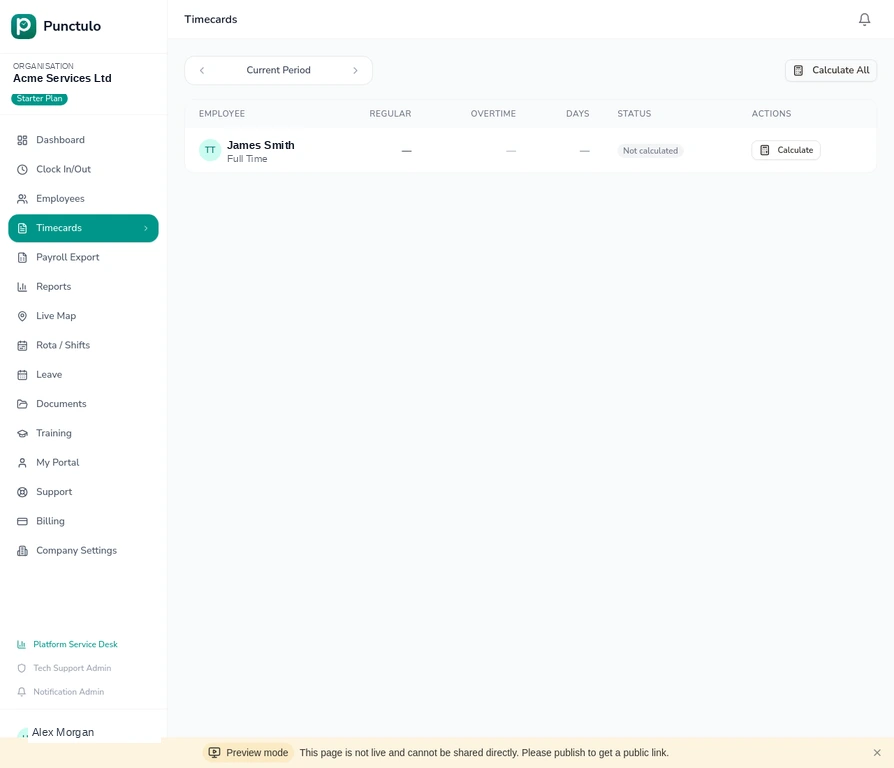
Click Timecards in the left-hand sidebar. The page shows a list of all employees and their timecard status for the current pay period.
Select the pay period
Use the period navigation arrows at the top of the page to move between pay periods. The current period is shown by default. Click the left arrow to go back to a previous period.
Calculate hours
Click Calculate next to an employee's row to compute their total regular and overtime hours for the period. You can also click Calculate All to process every employee at once. The status column will update from 'Not calculated' to show the computed hours.
Hours are calculated based on clock-in and clock-out punches. If an employee has a missing punch (e.g. forgot to clock out), the row will be flagged.
Review and correct punches
Click on an employee's row to open their detailed timecard. You can see every punch for the period, edit incorrect times, add missing punches, or delete erroneous entries. Changes are logged with a timestamp and your name.
Approve the timecard
Once you're satisfied with the hours, click Approve on the employee's timecard. Approved timecards are locked and cannot be edited without an admin override. The status badge changes to 'Approved'.
Only approve timecards when you are ready to export to payroll. Approved records are included in the payroll export automatically.
Export to payroll
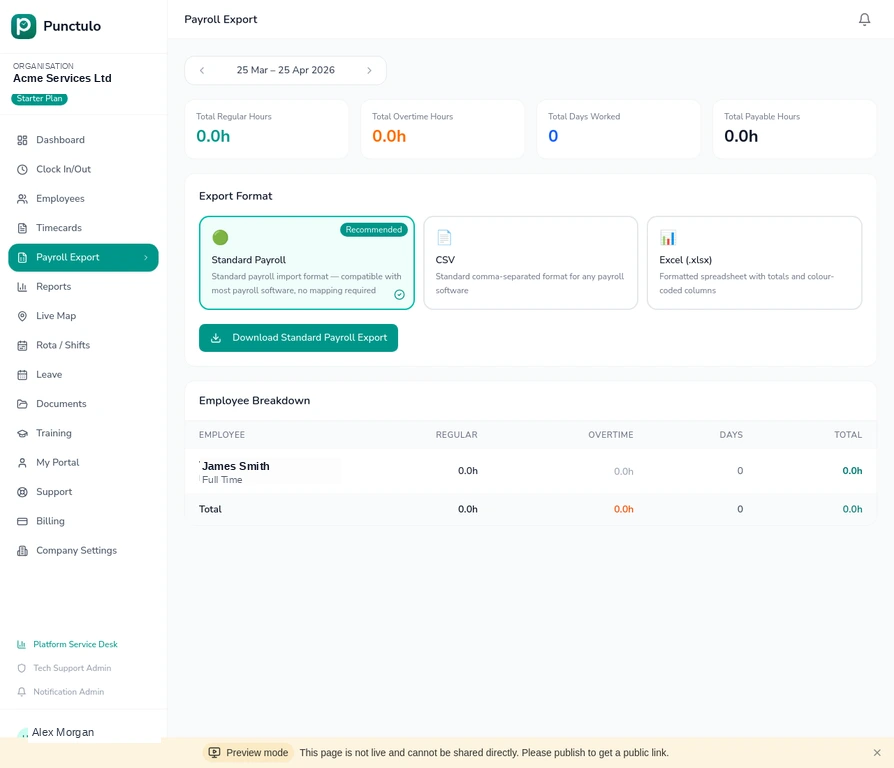
Once all timecards for the period are approved, navigate to Payroll Export to download the data. See the tutorial 'Running a payroll export' for the next steps.