Clocking in and out
Punctulo captures clock-in and clock-out events with GPS coordinates so you always know when and where your team started and finished work. Employees can clock in from any browser — no app download required.
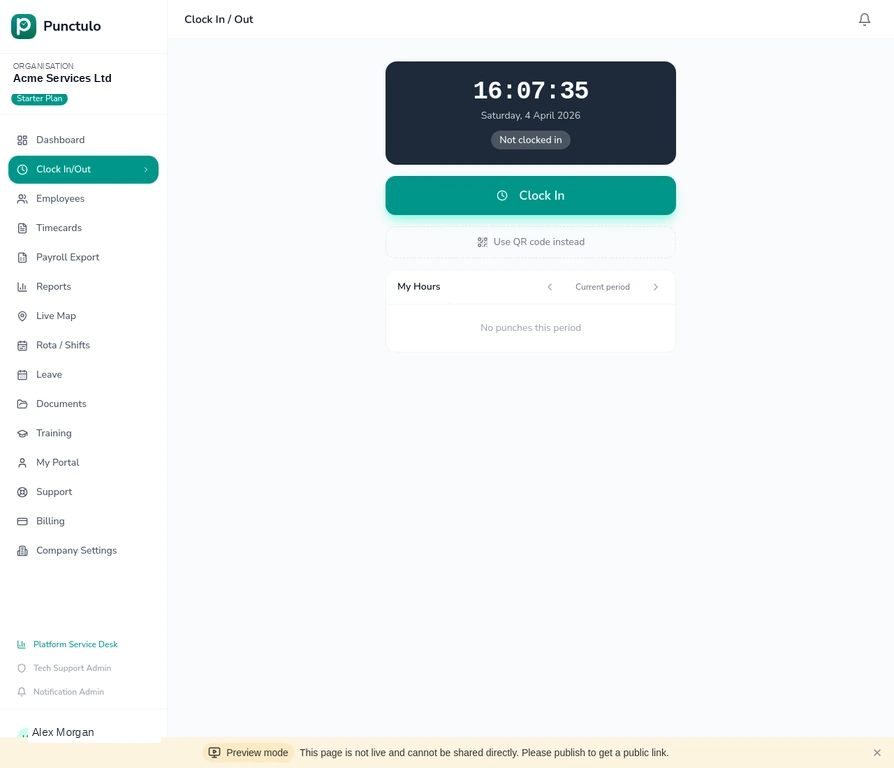
Open the Clock In / Out page
Click Clock In/Out in the left-hand sidebar. The page shows a live clock, the employee's current status (Not clocked in, Clocked in, or On break), and a large Clock In button.
Allow location access
When you click Clock In, the browser will ask for permission to access your location. Click Allow. Punctulo uses this GPS coordinate to verify the employee is on-site and records it against the punch.
If the employee declines location access, the clock-in will still be recorded but without a GPS coordinate. Managers can see which punches are missing location data.
Clock in
Once location access is granted, click Clock In. The status badge will change to Clocked in and the button will switch to Clock Out. The exact time and GPS location are recorded instantly.
Clock out at the end of the shift
At the end of the shift, return to the Clock In/Out page and click Clock Out. The system records the end time and calculates the total hours worked. This punch pair forms one timecard entry.
Employees can also use a QR code to clock in. Click **Use QR code instead** on the Clock In/Out page to generate a scannable code — useful for shared devices at a site entrance.