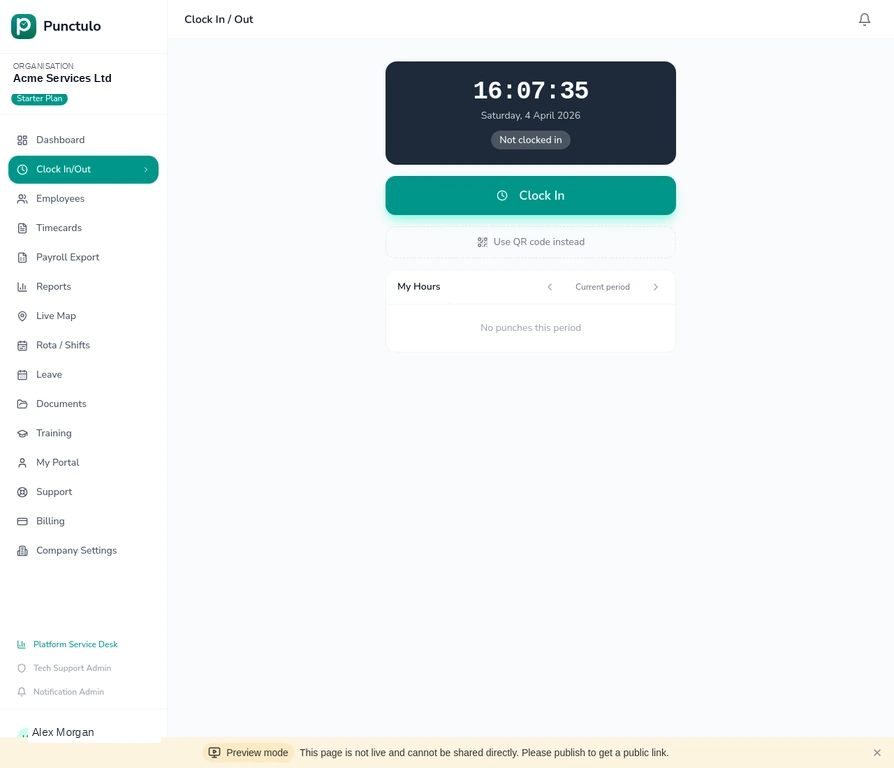
Setting up geofences
Geofences are virtual boundaries drawn around your work sites. When an employee clocks in outside a geofence, Punctulo flags the punch so managers can investigate. This is particularly useful for cleaning, security, and facilities management companies with multiple client sites.
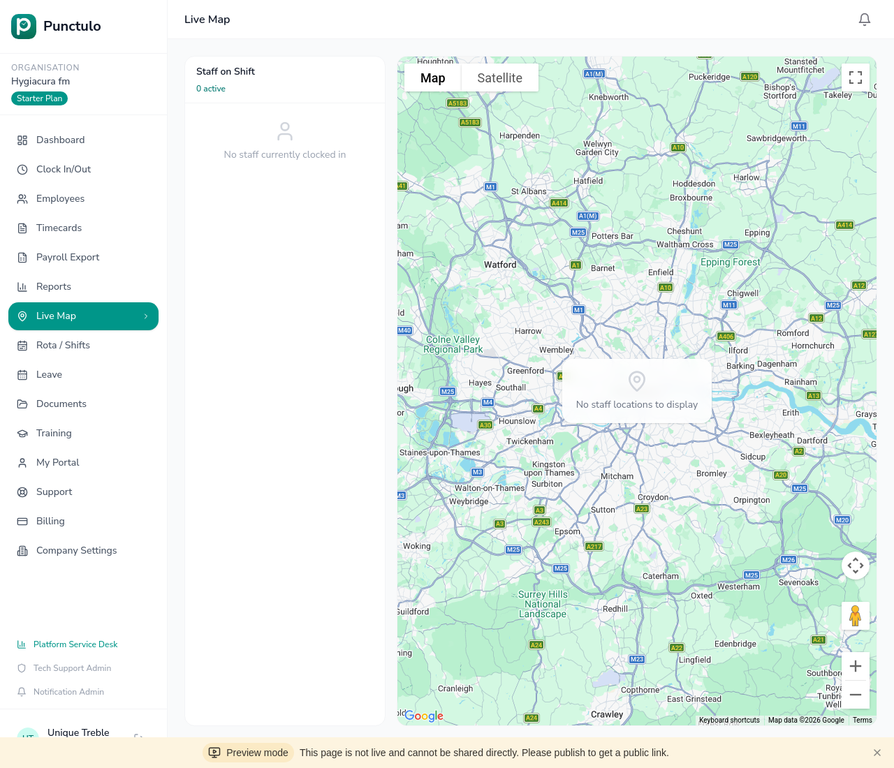
Open the Live Map
Geofences are managed from the Live Map page. Click Live Map in the sidebar to open the map view.
Locate your site on the map
Use the map controls to zoom in to the site where you want to create a geofence. You can drag the map to pan and use the + / − buttons to zoom. Satellite view can help you identify the exact building outline.
Draw the geofence boundary
Click the Draw geofence tool in the map toolbar. Click on the map to place the first corner of your boundary, then continue clicking to trace the perimeter of your site. Double-click to close the shape.
Draw the boundary slightly larger than the building footprint to account for GPS accuracy — a 20–30 metre buffer is usually sufficient.
Name the geofence
After drawing the shape, a dialog will appear asking you to name the geofence. Enter a descriptive name such as the site address or client name (e.g. 'Waterloo Office' or 'City Hospital — Block B').
Set the enforcement mode
Choose whether geofence violations should be flagged for review (the punch is recorded but marked as outside boundary) or blocked (the employee cannot clock in until they are within the boundary). Most organisations start with 'flag for review'.
You can change the enforcement mode at any time without affecting historical records.
Save and test
Click Save geofence. The boundary will appear on the map as a shaded polygon. Ask an employee to clock in from within the boundary to confirm it is working correctly.