Inviting team members
When you add an employee to Punctulo, an invitation email is sent to them automatically. This tutorial explains how the invitation flow works, how to resend an invite if it wasn't received, and how to use the manual Invite Staff option for managers and supervisors who need access without being on the payroll.
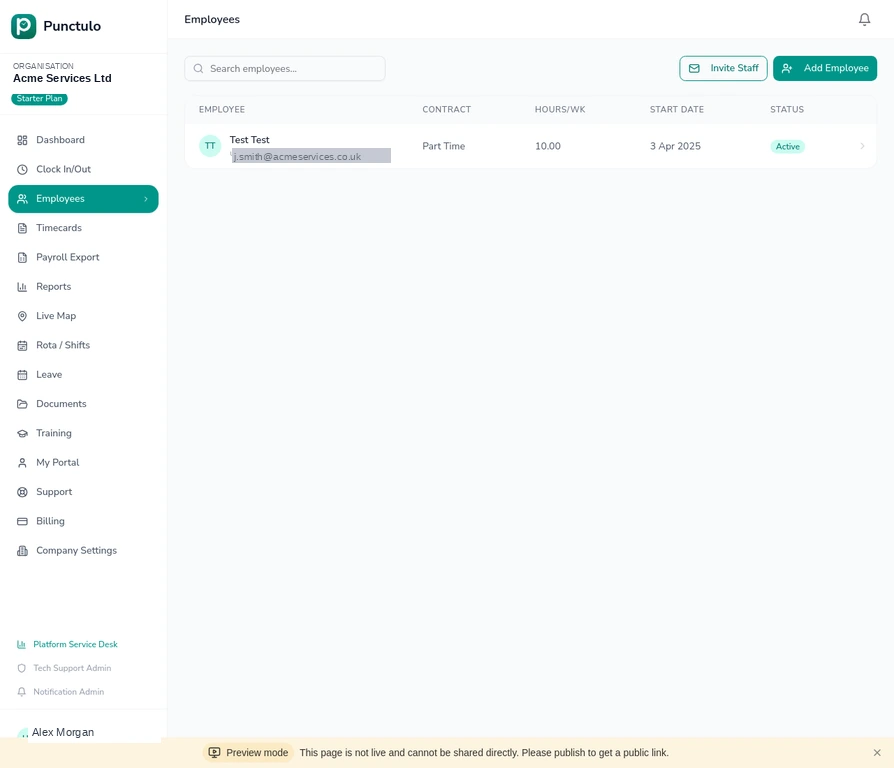
Automatic invite on employee creation
When you add a new employee via Add Employee and click Save, Punctulo automatically sends an invitation email to the address you entered. The employee receives a link to sign in and connect their account — no separate invite step is needed.
The invitation link expires after 7 days. If the employee hasn't accepted by then, use the Resend Invite button (see below).
Check invite status on the Employees page
Open the Employees page and look at each employee row. Employees who haven't yet accepted their invitation show an Invite pending indicator. Employees who have linked their account show as Active with no pending badge.
Resend an invitation
If an employee didn't receive their invite or it has expired, click on their row to open their profile. In the header, click the Resend Invite button. A new invitation link is generated and emailed immediately. The previous link is invalidated.
Ask the employee to check their spam or junk folder first — invitation emails from Punctulo can occasionally be filtered.
Invite a manager or supervisor manually
To give access to a manager, supervisor, or HR staff member who isn't on the payroll, click the Invite Staff button in the top-right corner of the Employees page. Enter their email address and click Send. They'll receive a link to join your organisation with the appropriate role.
You can send invitations to multiple people by repeating this process. Each person receives their own unique invitation link.
The invitee accepts the invitation
The invitee receives an email with a link to accept the invitation. When they click the link, they'll be prompted to sign in (or create an account if they don't have one). Once signed in, they are added to your organisation and can access Punctulo immediately.